Contents
Search
Start using BYQ Sections
Getting started is simple. All you need is a BYQ Supply account, a project to paste into, and optionally a few tools that make copy-pasting even smoother.
Getting started with Sections is extremely simple.
Here’s everything you need
- an account on BYQ Supply
- a project in Webflow, Figma, Framer, or any code editor (depending on how you want to use the section)
- (optional) the BYQ Supply Chrome extension, allowing you to browse and copy Sections directly inside Webflow
How to use Sections
- Find the section you want on BYQ Supply.
- Click “Copy section” in the top right of the section popup.
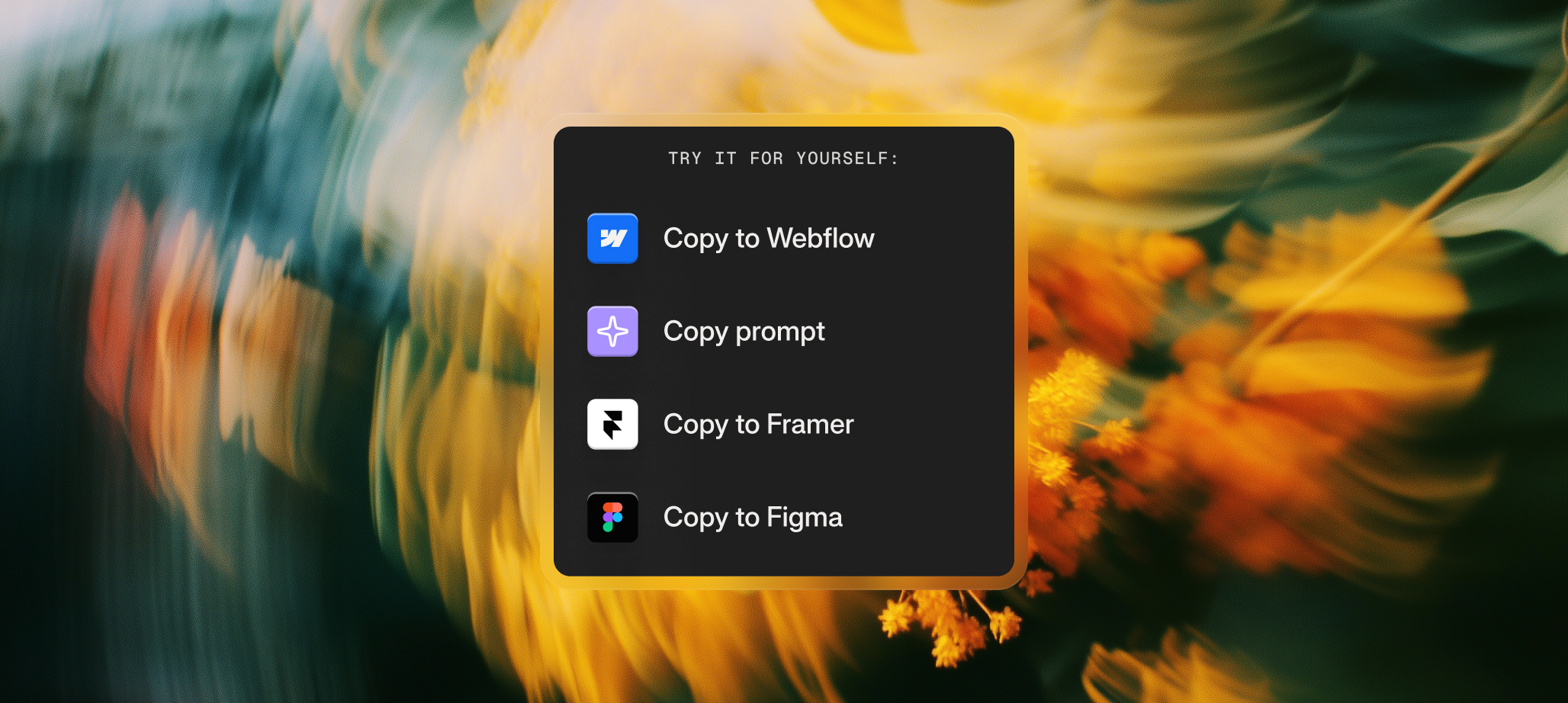
- Choose how you want to copy it:
- Copy to Webflow — paste as native Webflow elements
- Copy to Figma — paste as native Figma layers
- Copy to Framer — paste as native Framer elements
- Copy Prompt — copy as an instruction set for AI coding tools like Claude Code, Cursor, v0, or Lovable
- Open your destination project and paste:
- Windows: Ctrl + V
- Mac: Cmd + V
- Update the content to fit your website.
- (Optional) Clean the classes if you want to integrate it into your own design system. We explain cleaning classes in a later chapter.
- Done.
Sections are self-contained, so what you paste will always match the original design.
Customizing a Section before copying
Before you copy, you can also customize the section. Two options are available on every section popup:
- Themes — swap the section’s color scheme to one of our presets (Forerunner, Stripe, Wise, Netflix, Claude, Linear, Flex, Google) or extract a palette from your own website’s URL
- Edit with AI — make small AI-powered tweaks like highlighting a tile, swapping images, or rearranging icons and text
Whatever changes you make, the section will be copied with those changes applied. We cover both features in detail in their own chapters.
Saving Sections for later
If you find a section you’d like to come back to, click the heart icon in the section popup to save it to your Favourites. You can organize favourites into folders for different projects, and access them anytime from the sidebar. We cover this in more detail in Exploring Sections.
Everything inside a Section is pre-defined. That’s what makes them predictable and easy to use.
Access Quickly
